How to Self-Publish a Book on Amazon Kindle Direct Publishing (KDP)


To publish a book on Amazon sounds like a massive undertaking when you are staring at your finished manuscript. But the truth is that thousands of first-time authors figure this out every single month.
We have watched too many talented writers get completely stuck on things like margin settings or royalty tables. Those small technical hurdles stop people who already have completed books ready to go. That confusion ends right here.
After you finish reading this article you will have a clear path from your finished draft to a live Amazon product page that actual customers can buy from. Here is exactly what you will learn along the way:
Here is exactly what you will learn:

Think of KDP as Amazon's self-service printing press. You upload your file one time and then Amazon prints physical copies only when a customer actually buys one.
That means no boxes of unsold books ever end up sitting in your garage collecting dust or taking up space in your spare bedroom. Before we understand KDP, new writers may appreciate understanding exactly what self publishing entails.
This model is called print-on-demand, and the reason it has changed self publishing forever is that it removes every major financial risk that used to stop authors cold.
The global print-on-demand book market reached $3.6 billion in 2025 according to industry tracking, and current projections show it growing to $9.1 billion by 2034. North America alone held the largest piece of that market at $1.4 billion.
The best part about KDP is that it costs you absolutely nothing upfront, which means you pay zero dollars to upload your book and it is free to keep it listed. Amazon simply deducts their printing costs first, then takes their royalty percentage from whatever remains after each sale.
Your book stays live on Amazon until you decide to unpublish it yourself, so there are no deadlines and no pressure to sell a minimum number of copies each month.

Before any file goes up to KDP, the manuscript needs to pass through several checks that first time authors often overlook.
This means reading every single page out loud as if presenting to an audience. The brain processes spoken language differently than written text, so errors become obvious when heard rather than seen.
For example, a two hundred page memoir might have 12-15 of homophone errors like "their" versus "there" spread throughout the manuscript. Since no software will ever flag them as mistakes, you should use human eyes on every page to catch what computers cannot see.
The brain grows blind to its own writing after hours of staring at the same pages. You should set the manuscript aside for 48 hours minimum as this allows fresh eyes to notice mistakes missed the first time around.
This means every chapter should start the same way in terms of formatting. Inconsistent formatting tells the Amazon conversion tool to treat different sections separately, which breaks the ebook layout across various Kindle devices.
The tab key and the spacebar should never be used to indent paragraphs. The word processor paragraph settings need to create automatic first line indents instead of relying on manual keystrokes.
Formatting deserves serious attention before anything else in the publishing process, mostly because small choices lead to big problems later. Three formatting tools are available for use right now:
| Tool | Cost | Platform | Best For |
|---|---|---|---|
| Reedsy Book Editor | Free | Browser based (nothing to download) | Automatic cloud saving and clean EPUB exports that KDP accepts without extra steps |
| Atticus | $147 (one time payment) | Windows, Mac, and Chromebook | More design control without learning complex software or hiring outside help |
| Kindle Create | Free | Desktop download (Windows/Mac) | Guaranteed Amazon compatibility with limited customization options |
File type note: Amazon prefers EPUB files because this format preserves paragraph spacing, font choices, and image placement across all devices. DOCX files do work but produce unpredictable results with tables, bullet lists, and anything beyond basic text formatting like columns or sidebars.
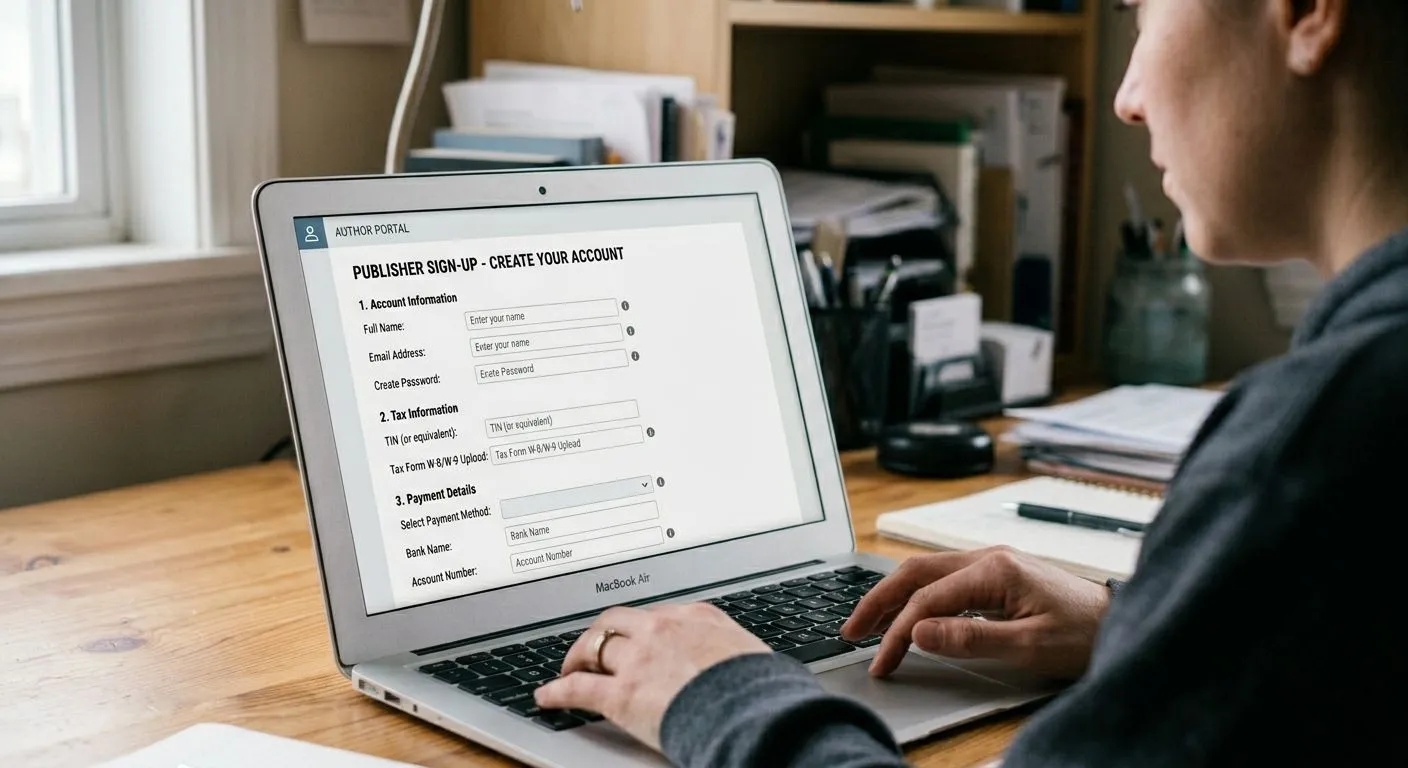
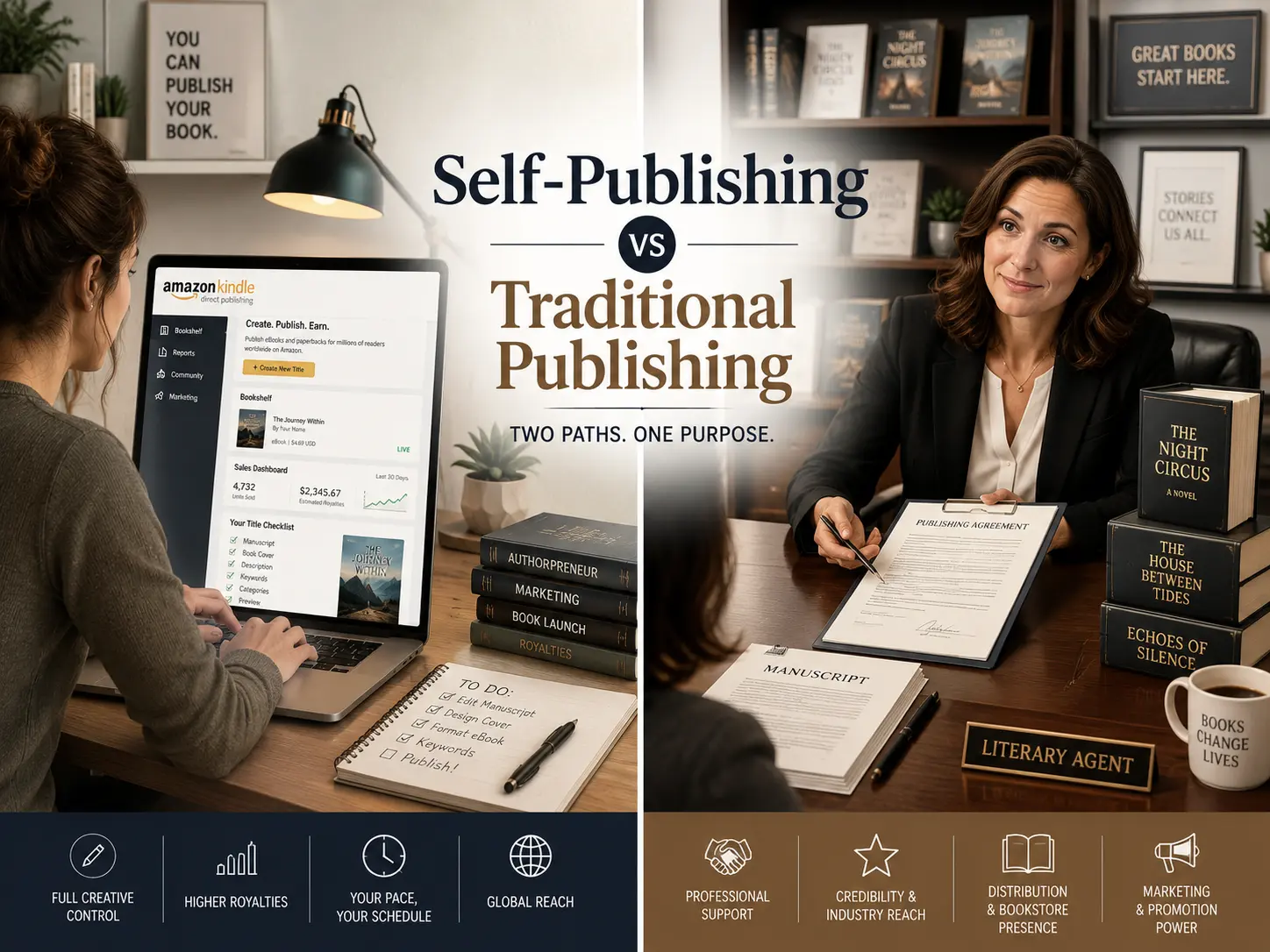
There is a vast difference between traditional publishing and self publishing. Because Amazon controls the vast majority of independent book sales, skipping account setup is effectively the same as deciding not to sell books at all.
If you are a new author, you need to handle tax collection early or else Amazon will block payments until that initial evaluation is complete.
Here are the five required steps for a complete KDP account.
If a writer lives outside the United States, international payment services can still receive earnings from Amazon.
A fully verified account is available with no upfront fees. Amazon simply takes a percentage of each sale as a printing and distribution cost while the author sets the final retail price.
The only way to actually receive royalties from book sales is to complete every single step before uploading any files. You may find the answers on how to self publish here.

A new author needs to know exactly which files and information to prepare before opening the KDP dashboard. This way, any writer can self publish a book in under one hour when those items are ready ahead of time.
Here are the five fields required during upload.
Pro tip: Most new writers open the upload form and then stop everything to write descriptions or brainstorm keywords, which turns a twenty minute job into an afternoon of frustration.
To avoid this friction, prepare the five required fields in a separate document and pay attention to metadata because readers cannot find a book with a weak title or missing keywords.
The takeaway: The upload process asks for basic book information only. When a writer prepares the title, description, and keywords ahead of time, they finish quickly and improve discoverability.
Setting the right price is one of the most important decisions you will make when you publish a book. Amazon offers two royalty tiers for ebooks so understanding the difference directly affects your earnings.
| Format | Price Range | Royalty Rate | Additional Fees / Notes |
|---|---|---|---|
| Ebook (KDP) | $2.99 – $9.99 | 70% | Delivery fee: $0.15 per megabyte (minimum $0.01) |
| Ebook (KDP) | Below $2.99 or above $9.99 | 35% | No delivery fee |
| Paperback / Hardcover | Below $9.99 | 50% | Printing cost: $2.15 + $0.013 per page (over 108 pages, black ink) |
| Paperback / Hardcover | $9.99 and above | 60% | Printing cost: $2.15 + $0.013 per page (over 108 pages, black ink) |
Note: Expanded Distribution (libraries and bookstores outside Amazon) pays 40% royalty instead of the standard 50-60% rates shown above.
Example earnings: A $4.99 ebook at 70% royalty nets roughly $3.50 per sale after delivery fees. The same ebook at $10.00 drops to 35% royalty and earns about $3.50 per sale with no delivery fee deducted.
The takeaway: Price your ebook between $2.99 and $9.99 to qualify for 70% royalties, and keep file size small to reduce delivery fees. For print books, pricing above $9.99 gives you a better royalty rate.
Before you finish publishing a book, a final review catches mistakes that could frustrate readers or hurt sales. Run through this checklist one last time.
✓ Spell check your entire manuscript inside and out
✓ Verify your cover image meets the minimum 1600 pixels on the shortest side
✓ Click Preview using Kindle Previewer on every single page
✓ Confirm your table of contents links work correctly
✓ Double check author name spelling across the title page and metadata
✓ Test your book's look on both a phone screen and a computer monitor
Remember that after you publish, you can update your manuscript and cover file anytime. You can also change your book's description, keywords, categories, territories, price, and royalty rate.
However, your book's title, language, edition number, primary author name, and ISBN become locked and cannot be changed after publishing.
For paperback and hardcover books, you have a 72-hour window after publication to edit the title or primary author name. After that window closes, those fields are fully locked.
These five minutes you spend on the final review will save you hours of frustration and prevent bad reviews from readers who find formatting errors.
Publishing on Amazon does not require a literary agent or a printing press. The tools are free, the process is straightforward, and thousands of authors go through it every single day. Your book deserves to find its readers, and now you know exactly how to get it there.
Most ebooks appear in stores within 72 hours, though some go live in as little as 24 hours.
No, Amazon assigns a free ASIN to every ebook uploaded through KDP.
Yes, you can adjust pricing anytime from your KDP Bookshelf, though price changes take up to 24 hours to reflect in stores.
You can upload a corrected manuscript file at any time, and Amazon will replace the old version within 72 hours.
No, Amazon does not remove books for low sales. Your title remains available indefinitely unless you unpublish it yourself.